16. Notes and badges
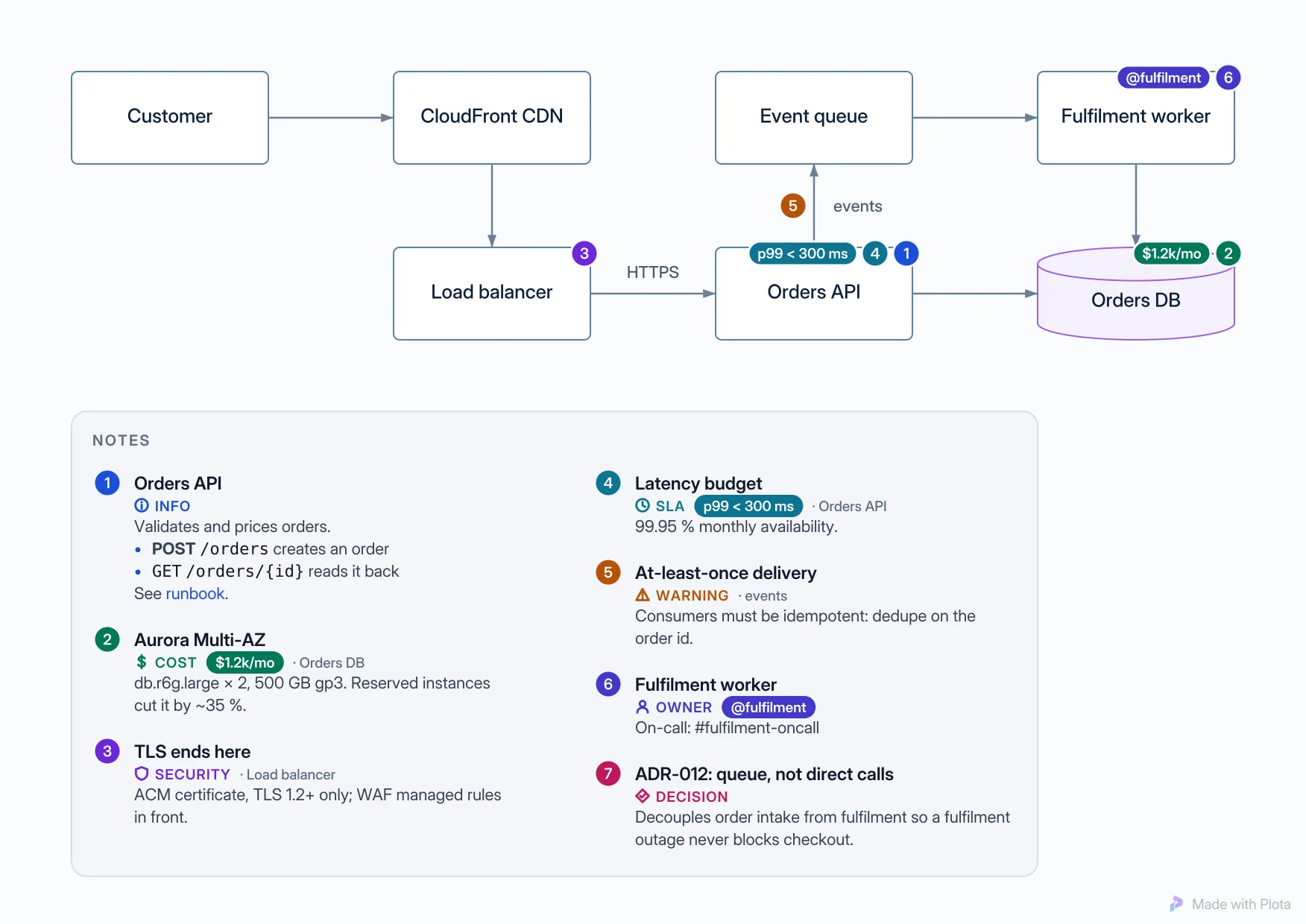
A diagram says what is connected to what. Notes say why: what a service is for, where data is encrypted, what it costs, who owns it, what was decided. Plota keeps that detail out of the boxes and next to the drawing, so the shapes stay short and readable and nothing is lost.
What a note holds#
| Anchor | the shape, connector, frame or page it is about |
| Kind | Info, Warning, Risk, Security, Cost, SLA / latency, Owner, Version, To do, Decision — each with its own colour and symbol |
| Title | one line; when you leave it empty the anchor's own name is used |
| Body | as many lines as you need, with **bold**, *italic*, `code`, [links](https://…), - bullets and 1. numbered items |
| Badge | a short chip shown on the drawing beside the number — $1.2k/mo, p99 < 300 ms, PII, v3, @payments |
| Icon | optional: another symbol than the kind's (lock, globe, database, bolt, link, star, check, clock, user, tag) or one or two characters |
| Number | the marker's number; new notes are numbered for you |
How notes are drawn#
- A numbered marker sits on the corner of the shape (or on the connector, or in the corner of the frame) the note is about, with its badge beside it. Hover a marker to read the note.
- The notes panel lists every note in full, by number: the number, the kind, the title, the badge, what it is about, and the body. It goes beside the drawing, or under it when the drawing is wide; the page grows to make room, so a note never covers a shape or a label.
- Where the way is clear, a dotted leader line joins a marker to its entry in a panel beside the drawing. It never crosses a shape, a label or another connector; where it would, the number alone links the two.
- Colours are chosen against the page, so every kind stays readable on every theme, light or dark.
Exports carry all of it: SVG, PNG and PDF from the app, the plota command
line, and diagrams drawn through the MCP server.
Adding and editing notes#
- Right-click a shape, a connector or the empty page and choose Add note….
- Select a shape or connector and use the Notes section of the Inspector to add, edit or delete its notes (with nothing selected, it edits the page's notes).
- Open the Notes panel (command palette: “Notes panel”) to see every note on the page. Click one to select and show what it is about; click a marker on the canvas to open its note. Renumber puts the numbers in reading order, top to bottom.
- Deleting a shape or connector deletes its notes with it (undo brings both back).
Diagrams saved with the earlier single-line notes open with them turned into notes of kind Info, numbered as before.
Notes from Mermaid#
A sequence diagram's
Note left of,right ofandoverlines stay where Mermaid puts them, in their row. A note that starts with a kind —Note right of A: Security: tokens expire after 15 min— is tagged with it.Class and state diagram notes work the same way.
In a flowchart, a comment of the form below becomes a note on that node (a connector written
a-->b, or the page when no id is given):%% note api: Validates and prices orders %% cost db [$1.2k/mo]: Aurora Multi-AZ, two r6g.large %% warning api "Rate limit": 100 requests per second per tenant %% decision: Orders go through a queue, never direct callsAny kind from the table above works in place of
note. Other comments are ignored, as before, and exporting to Mermaid writes these lines back.
Notes through AI agents#
The MCP server takes notes in the same call that builds the diagram: a
notes list on a shape, a connector or the diagram, each with a kind, title,
body and badge. See Plota in Claude and other AI agents.