3. Shapes and stencils
The catalogue#
68 shape kinds in total: 29 core kinds and 39 stencil kinds.
The shape palette (left panel → Shapes, or the toolbar drop-down) groups 25 of
the core kinds:
| Group | Kinds |
|---|---|
| Flowchart | start, process, decision, gate, data, store, document, end, stop |
| UML | actor, fragment, component |
| Architecture | plane, lane, group, cloud, database, queue, person |
| Basic | rect, card, ellipse, triangle, text, note |
The other four core kinds are produced by other tools rather than the palette:
lifeline and activation (sequence diagrams, mostly from the bundled
figures), image (drop a picture) and icon (place an icon).
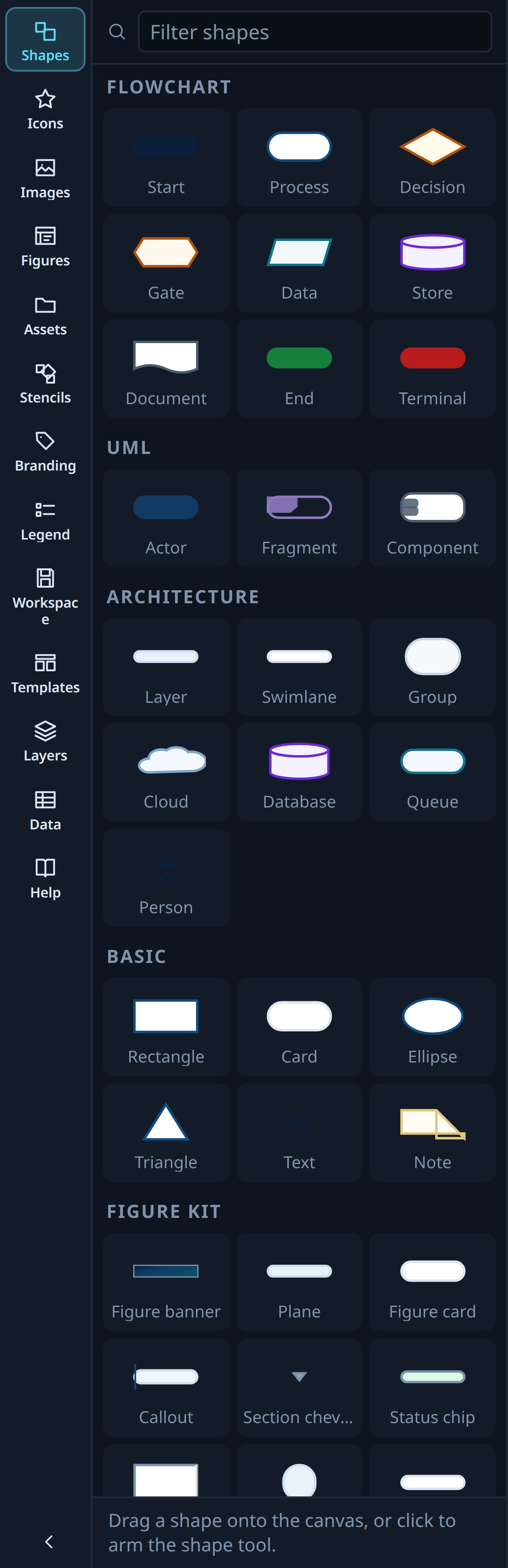
Three ways to place one:
- Drag the swatch onto the canvas.
- Click the swatch to arm it, then click the canvas.
- Command palette →
Insert process,Insert decision, …
Whichever you use, the new shape is selected and its inline editor is open, so you can type immediately.
Stencil libraries#
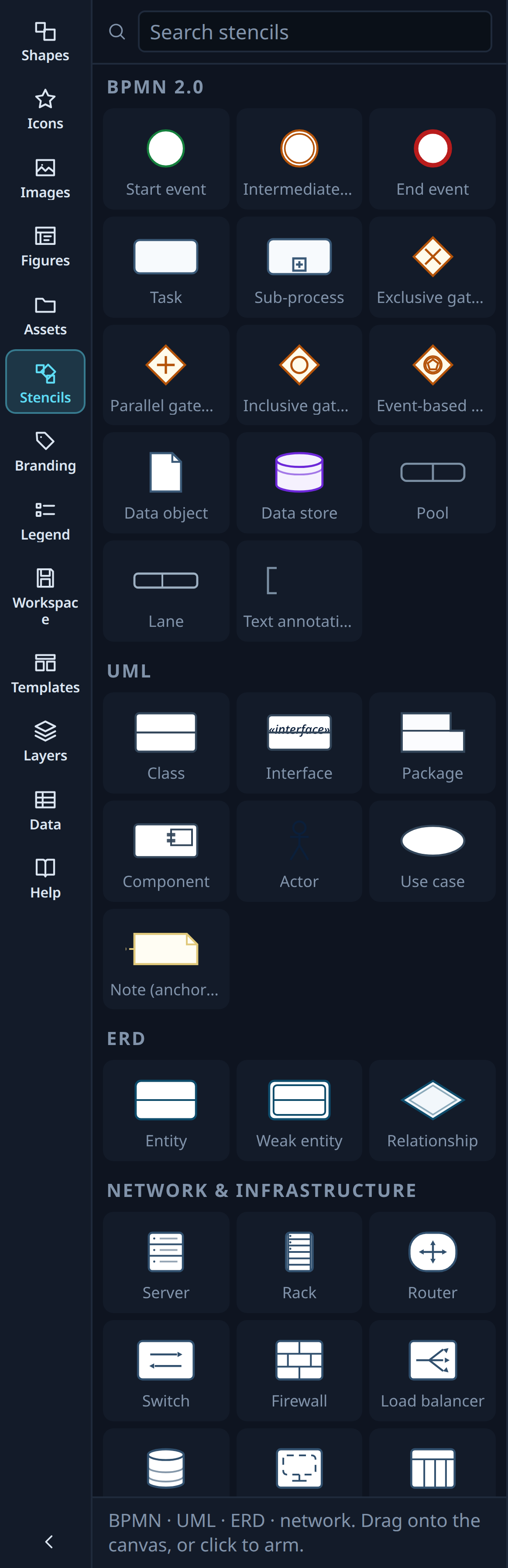
Left panel → Stencils, or Assets ▸ Stencils, or the palette command
Stencils: open the library. Everything is searchable by name and keyword.
| Library | Kinds | Contents |
|---|---|---|
| BPMN 2.0 | 14 | start / intermediate / end events, task, sub-process, the four gateways, data object, data store, pool, lane, annotation |
| UML | 7 | class, interface, package, component, actor, use case, note |
| ERD | 3 | entity, weak entity, relationship |
| Network | 14 | infrastructure and topology shapes |
| Data | 1 | table |
Stencil shapes are ordinary nodes with a stencil kind, so everything else in
the app — morphing, styling, routing, export, the AI layer — treats them like
any other shape. Because the theme has no entry for these kinds, dropping one
also applies the stencil's default style.
Some stencils are content driven: the node's body text is the model.
umlClassrenders compartments from the body.tablekeeps its grid inmeta.tableand draws a live column overlay you can drag.- ERD entities render one attribute row per body line (see the ERD walkthrough).
Changing a shape's kind (morphing)#
Right-click → Change shape, or the Inspector's shape grid. Text, size,
position, style overrides, layer, parent and every connected edge survive: only
the outline changes. The morph grid offers the core kinds and every stencil
kind.
Icons#
Left panel → Icons. 201 icons are bundled (Lucide, Tabler and Simple Icons —
see src/assets/icons/LICENSES.md). If a search matches nothing locally the
panel can query the public Iconify API; nothing from Iconify is bundled, and the
single icon you pick is inlined into the document when you place it.
An icon node draws the glyph with the label underneath and no outline.
Images#
Left panel → Images: drop files, pick them, or fetch a URL. Images are stored
as data URIs on the document, so an exported JSON is self-contained and the
single-file build keeps working offline.
Remove background runs a local segmentation model over the selected image or
icon node. It is a real download the first time and it is not available in the
single-file build.
Right-click an image for its fit mode and Replace picture.
Figures and saved diagrams#
Left panel → Figures: the 31 bundled Plota A9 figures (460 nodes and 353 edges
between them), converted with their semantic structure intact — decisions are
decision nodes, sequence messages are edges between lifelines, swimlane children
are parented to their lane. Below them, My diagrams lists whatever you have
saved with Ctrl/⌘ S.
Assets: one search over everything#
The Assets button in the toolbar, or the Assets tab, searches shapes,
stencils, icons, document images, named styles, bundled figures and saved
diagrams together, with what you used most recently pinned at the top. Every hit
is draggable onto the canvas, and clicking one places it at the centre of the
view.